Mostbet w Polsce Portal Kasynowy Online – Cyfrowa rozrywka i szeroki wybуr gier

Kasyna online proponuja uzytkownikom rozmaitych kategorii gier, innowacyjnych funkcjonalnosci oraz wirtualnych form rozrywki. Informacje dotyczace mozliwosci cyfrowych platform kasynowych mozna sprawdzic na https://worldfood.lentreg.pl/, gdzie omawiane sa tematy dotyczace gier online.

Mostbet w Polsce to marka funkcjonujaca w obszarze rozrywki kasynowej online. Kasyno online wyrуznia swoja oferte poprzez rуznorodnoscia kategorii gier, obejmujacych zarуwno klasyczne gry na automatach, jak i nowoczesniejsze produkcje. Jej charakterystyke tworza cyfrowe funkcjonalnosci oraz rуznorodny zakres dostepnych form rozgrywki.

Funkcjonalnosc i przejrzystosc platformy

Mostbet kasyno stanowi propozycje dla odbiorcуw zainteresowanych wieloma rodzajami gier online. Katalog rozrywki udostepnia wirtualne automaty kasynowe, klasyczne gry stolowe oraz interaktywne produkcje wykorzystujace technologie internetowe.

Podstawowym elementem pozostaje organizacja prezentacji kategorii gier. Wygodnie zorganizowane menu ulatwia odnajdywanie konkretnych produkcji i zapoznawanie sie z ich opisami. Zrуznicowane style wizualne, nowoczesna prezentacja wizualna oraz nowoczesne mechanizmy wplywaja na indywidualny styl kazdej gry. Kazdy wariant gry obejmuje wlasne mechanizmy oraz charakterystyczne zasady.

Rodzaje rozgrywki i znane produkcje

Mostbet w Polsce udostepnia rozmaite formy rozrywki typowe dla nowoczesnych kasyn online. Do popularnych grup gier zalicza sie wirtualne automaty wideo, standardowe produkcje slotowe, cyfrowe rozgrywki karciane oraz gry typu live casino. Popularne tytuly kasynowe obejmuja Sweet Bonanza, Gates of Olympus, Fire Joker i Big Bass Bonanza. Szczegуlowe zestawienie dostepnych gier wynika z biezacej oferty kasynowej.

Typ rozgrywki

Wybrane gry

Internetowe automaty wideo

Sweet Bonanza, Gates of Olympus

Automaty klasyczne

Fire Joker

Tematyczne automaty

Big Bass Bonanza

Gry stolowe online

Blackjack, roulette, stolowy baccarat

Crash Games

JetX, Aviator

Gry kasynowe na zywo

Live Blackjack, Live Roulette

Rуzne rodzaje gier cechuja sie odmienna mechanika, oprawa wizualna oraz dostepnymi funkcjami specjalnymi. Tak duze zrуznicowanie sprzyja odkrywaniu zrуznicowanych mozliwosci cyfrowej rozrywki.

Zasady licencjonowania i dzialalnosci

Wymagania licencyjne stanowia istotna czesc funkcjonowania kasyn online. Regulacje ustalaja standardy organizacji uslug oraz dzialania platform kasynowych.

Mostbet kasyno to nowoczesne kasyno internetowe posiadajace licencje wydana na Curaзao. Platforma laczy rуznorodnosc kategorii z funkcjonalnosciami wspуlczesnych serwisуw kasynowych. Uporzadkowany uklad platformy, rуznorodne rodzaje gier oraz cyfrowe funkcjonalnosci buduja przestrzen dla osуb zainteresowanych rozgrywka online. Wazna role w dzialalnosci platformy odgrywaja rуwniez zasady prywatnosci oraz regulamin. Czytelny opis zasad ulatwia analize warunkуw funkcjonowania platformy.

Metody platnosci i obsluga transakcji

Mostbet w Polsce dziala na rynku wykorzystujacym liczne rozwiazania do platnosci cyfrowych. Dostep do poszczegуlnych metod moze zalezec od miejsca zamieszkania uzytkownika i obowiazujacych warunkуw. Wsrуd stosowanych metod platnosci mozna wymienic:

  • Rozliczenia kartami Visa i Mastercard: Platnosci wykonywane za pomoca kart bankowych.
  • Operacje bankowe online: Przeprowadzanie operacji finansowych miedzy kontami.
  • Portfel cyfrowy Skrill: Rozwiazanie platnicze obslugujace transakcje cyfrowe.
  • System platniczy Neteller: Usluga sluzaca do realizacji operacji platniczych online.
  • Waluty wirtualne: Alternatywny sposуb wykonywania platnosci w wybranych kasynach.

Przy wykonywaniu transakcji cyfrowych istotne pozostaja maksymalne wartosci transakcji, czas ich realizacji oraz potencjalne koszty. W przypadku wybranych operacji konieczne moze byc sprawdzenie tozsamosci uzytkownika.

Programy promocyjne i dodatkowe korzysci

Mostbet kasyno to marka funkcjonujaca w sektorze wykorzystujacym rуznorodne mechanizmy promocyjne. Oferty bonusowe moga obejmowac dodatkowe srodki na gre, darmowe obroty oraz specjalne programy skierowane do wybranych uczestnikуw. Do znanych ofert promocyjnych naleza:

  • Oferta startowa: Oferta specjalna opracowana dla nowych graczy.
  • Bonusowe obroty: Darmowe obroty na okreslonych automatach.
  • Czesciowy zwrot strat: Program bonusowy zwiazany z czesciowym zwrotem strat.
  • Nagrody za aktywnosc: Nagrody przewidziane dla uzytkownikуw uczestniczacych w promocjach.

Zasady korzystania z bonusуw moga obejmowac wymogi obrotu bonusowego oraz ograniczenia wyplat. Oferty promocyjne nie daja pewnosci osiagniecia wygranej, dlatego warto poznac zasady bonusуw i zachowac kontrole nad budzetem.

Pytania uzytkownikуw i odpowiedzi

Czy Mostbet Casino można otworzyж z Polski bez VPN i proxy?

W Mostbet Casino można graж bez VPN i proxy.

Czy Mostbet Casino jest znane z szybkich wypłat?

Mostbet Casino oferuje standardowy czas realizacji wypłat wynoszący do 24 godzin.

Czy Mostbet oferuje graczom bonusy powitalne?

Tak, Mostbet oferuje bonusy powitalne dla nowych graczy. Aktualną ofertк i jej warunki można sprawdziж na stronie Mostbet w Polsce.

Czy Mostbet wymaga potwierdzenia pełnoletności?

Tak, podczas rejestracji w Mostbet należy potwierdziж spełnienie wymogu wieku. Minimalny wiek pozwalający na rejestracjк wynosi 18 lat.
OpenClaw LM studio promt

You are Clawdbot. You are a precise JSON command generator.
You do NOT chat. You execute commands.

AVAILABLE TOOLS:

  1. weather (arguments: location)
  2. apple-reminders (arguments: title)
  3. apple-calendar (arguments: title, date)
  4. calculator (arguments: expression)
  5. web-search (arguments: query)
  6. read-file (arguments: path)
  7. write-file (arguments: path, content)
  8. terminal (arguments: command)

RULES:

  • Output RAW JSON only.
  • For calculations, use the calculator tool.
  • Dates for calendar must be in ISO format (YYYY-MM-DD HH:MM).

EMAIL INSTRUCTIONS (IMPORTANT):

  • Do NOT use “email-send” tools.
  • Use the “terminal” tool.
  • READ EMAILS: “himalaya envelope list”
  • READ SPECIFIC EMAIL: “himalaya message read [ID]”
  • SEND EMAIL: Use printf to pipe content to himalaya.
    Format: printf “To: [EMAIL]\nSubject: [SUBJECT]\n\n[BODY]” | himalaya template send

EXAMPLES:

User: “Search for latest iPhone news”
Output: {“name”: “web-search”, “arguments”: {“query”: “latest iPhone news”}}

User: “Check my emails”
Output: {“name”: “terminal”, “arguments”: {“command”: “himalaya envelope list”}}

User: “Read email 11204”
Output: {“name”: “terminal”, “arguments”: {“command”: “himalaya message read 11204”}}

User: “Send email to jonas@example.com about meeting saying Hi Jonas”
Output: {“name”: “terminal”, “arguments”: {“command”: “printf \”To: jonas@example.com\nSubject: meeting\n\nHi Jonas\” | himalaya template send”}}

Windows 11 old meniu

  1. Open Windows Terminal as Administrator: Right-click the Start button and select Windows Terminal (Admin) or Command Prompt (Admin).
  2. Run the Registry Command: Copy and paste the following command into the terminal and press Enter:cmd reg add "HKCU\Software\Classes\CLSID\{86ca1aa0-34aa-4e8b-a509-50c905bae2a2}\InprocServer32" /f /ve
  3. Restart Explorer: To apply the changes, restart the explorer.exe process. Run this command in the same terminal window:cmdtaskkill /f /im explorer.exe && start explorer.exe
  4. Check: Now, when you right-click, you should see the classic Windows 10-style menu by default. 

You can watch this video for a full tutorial on how to use the registry to enable the classic right-click menu:

reg delete "HKCU\Software\Classes\CLSID\{86ca1aa0-34aa-4e8b-a509-50c905bae2a2}" /f

autoprint

Below is a clear, step-by-step solution to automatically print any file dropped into a specific Windows folder. This method works reliably and does not require paid software.—Option 1 — Use a Windows PowerShell Script + Task Scheduler (Best method)1. Create a folder for auto-printingExample:C:\AutoPrint2. Create a PowerShell script1. Open Notepad2. Paste this script:$watcher = New-Object System.IO.FileSystemWatcher$watcher.Path = “C:\AutoPrint”$watcher.Filter = “*.*”$watcher.EnableRaisingEvents = $true$watcher.IncludeSubdirectories = $falseRegister-ObjectEvent $watcher Created -Action { Start-Sleep -Seconds 2 # Wait until file finishes copying $filePath = $Event.SourceEventArgs.FullPath $extension = [System.IO.Path]::GetExtension($filePath).ToLower() Switch ($extension) { “.pdf” { Start-Process -FilePath $filePath -Verb Print } “.doc” { Start-Process -FilePath $filePath -Verb Print } “.docx” { Start-Process -FilePath $filePath -Verb Print } “.txt” { Start-Process -FilePath $filePath -Verb Print } default { Write-Host “Unsupported file type: $extension” } }}while ($true) { Start-Sleep -Seconds 1}3. Save as:C:\AutoPrint\autoprint.ps1—3. Allow PowerShell scripts to runOpen PowerShell as Administrator and run:Set-ExecutionPolicy RemoteSignedPress Y.—4. Create a Task Scheduler task to run script at startup1. Open Task Scheduler2. Create Task3. General tab:Name: Auto Print Folder WatcherCheck: Run whether user is logged on or notCheck: Run with highest privileges4. Triggers tab:New → At startup5. Actions tab:New →Action: Start a programProgram: powershell.exeAdd arguments:-ExecutionPolicy Bypass -File “C:\AutoPrint\autoprint.ps1″6. Save the task → enter your Windows password.—5. Test1. Copy a PDF, DOCX, TXT into C:\AutoPrint2. Within 2–3 seconds your default printer will print it automatically.—Option 2 — Use a simple BAT script (Print PDFs only)If you only need PDF auto-printing:1. Create printpdf.bat:FOR %%F IN (“C:\AutoPrint\*.pdf”) DO ( “%ProgramFiles%\Adobe\Acrobat Reader\Reader\AcroRd32.exe” /t “%%F” del “%%F”)2. Schedule it in Task Scheduler to run every minute.—Option 3 — Use a third-party tool (Fastest)Free tools:FolderMill (best)Print ConductorWatch 4 Folder + printing commandBut Option 1 is most flexible.—If you want, I can generate the exact script for:✔ PDFs only✔ All file types✔ A specific printer (not default)✔ Multiple folders✔ Delete files after printing✔ Log each print eventJust tell me your requirements.Below is a clear, step-by-step solution to automatically print any file dropped into a specific Windows folder. This method works reliably and does not require paid software.—Option 1 — Use a Windows PowerShell Script + Task Scheduler (Best method)1. Create a folder for auto-printingExample:C:\AutoPrint2. Create a PowerShell script1. Open Notepad2. Paste this script:$watcher = New-Object System.IO.FileSystemWatcher$watcher.Path = “C:\AutoPrint”$watcher.Filter = “*.*”$watcher.EnableRaisingEvents = $true$watcher.IncludeSubdirectories = $falseRegister-ObjectEvent $watcher Created -Action { Start-Sleep -Seconds 2 # Wait until file finishes copying $filePath = $Event.SourceEventArgs.FullPath $extension = [System.IO.Path]::GetExtension($filePath).ToLower() Switch ($extension) { “.pdf” { Start-Process -FilePath $filePath -Verb Print } “.doc” { Start-Process -FilePath $filePath -Verb Print } “.docx” { Start-Process -FilePath $filePath -Verb Print } “.txt” { Start-Process -FilePath $filePath -Verb Print } default { Write-Host “Unsupported file type: $extension” } }}while ($true) { Start-Sleep -Seconds 1}3. Save as:C:\AutoPrint\autoprint.ps1—3. Allow PowerShell scripts to runOpen PowerShell as Administrator and run:Set-ExecutionPolicy RemoteSignedPress Y.—4. Create a Task Scheduler task to run script at startup1. Open Task Scheduler2. Create Task3. General tab:Name: Auto Print Folder WatcherCheck: Run whether user is logged on or notCheck: Run with highest privileges4. Triggers tab:New → At startup5. Actions tab:New →Action: Start a programProgram: powershell.exeAdd arguments:-ExecutionPolicy Bypass -File “C:\AutoPrint\autoprint.ps1″6. Save the task → enter your Windows password.—5. Test1. Copy a PDF, DOCX, TXT into C:\AutoPrint2. Within 2–3 seconds your default printer will print it automatically.—Option 2 — Use a simple BAT script (Print PDFs only)If you only need PDF auto-printing:1. Create printpdf.bat:FOR %%F IN (“C:\AutoPrint\*.pdf”) DO ( “%ProgramFiles%\Adobe\Acrobat Reader\Reader\AcroRd32.exe” /t “%%F” del “%%F”)2. Schedule it in Task Scheduler to run every minute.—Option 3 — Use a third-party tool (Fastest)Free tools:FolderMill (best)Print ConductorWatch 4 Folder + printing commandBut Option 1 is most flexible.—If you want, I can generate the exact script for:✔ PDFs only✔ All file types✔ A specific printer (not default)✔ Multiple folders✔ Delete files after printing✔ Log each print eventJust tell me your requirements.Below is a clear, step-by-step solution to automatically print any file dropped into a specific Windows folder. This method works reliably and does not require paid software.—Option 1 — Use a Windows PowerShell Script + Task Scheduler (Best method)1. Create a folder for auto-printingExample:C:\AutoPrint2. Create a PowerShell script1. Open Notepad2. Paste this script:$watcher = New-Object System.IO.FileSystemWatcher$watcher.Path = “C:\AutoPrint”$watcher.Filter = “*.*”$watcher.EnableRaisingEvents = $true$watcher.IncludeSubdirectories = $falseRegister-ObjectEvent $watcher Created -Action { Start-Sleep -Seconds 2 # Wait until file finishes copying $filePath = $Event.SourceEventArgs.FullPath $extension = [System.IO.Path]::GetExtension($filePath).ToLower() Switch ($extension) { “.pdf” { Start-Process -FilePath $filePath -Verb Print } “.doc” { Start-Process -FilePath $filePath -Verb Print } “.docx” { Start-Process -FilePath $filePath -Verb Print } “.txt” { Start-Process -FilePath $filePath -Verb Print } default { Write-Host “Unsupported file type: $extension” } }}while ($true) { Start-Sleep -Seconds 1}3. Save as:C:\AutoPrint\autoprint.ps1—3. Allow PowerShell scripts to runOpen PowerShell as Administrator and run:Set-ExecutionPolicy RemoteSignedPress Y.—4. Create a Task Scheduler task to run script at startup1. Open Task Scheduler2. Create Task3. General tab:Name: Auto Print Folder WatcherCheck: Run whether user is logged on or notCheck: Run with highest privileges4. Triggers tab:New → At startup5. Actions tab:New →Action: Start a programProgram: powershell.exeAdd arguments:-ExecutionPolicy Bypass -File “C:\AutoPrint\autoprint.ps1″6. Save the task → enter your Windows password.—5. Test1. Copy a PDF, DOCX, TXT into C:\AutoPrint2. Within 2–3 seconds your default printer will print it automatically.—Option 2 — Use a simple BAT script (Print PDFs only)If you only need PDF auto-printing:1. Create printpdf.bat:FOR %%F IN (“C:\AutoPrint\*.pdf”) DO ( “%ProgramFiles%\Adobe\Acrobat Reader\Reader\AcroRd32.exe” /t “%%F” del “%%F”)2. Schedule it in Task Scheduler to run every minute.—Option 3 — Use a third-party tool (Fastest)Free tools:FolderMill (best)Print ConductorWatch 4 Folder + printing commandBut Option 1 is most flexible.—If you want, I can generate the exact script for:✔ PDFs only✔ All file types✔ A specific printer (not default)✔ Multiple folders✔ Delete files after printing✔ Log each print eventJust tell me your requirements.Below is a clear, step-by-step solution to automatically print any file dropped into a specific Windows folder. This method works reliably and does not require paid software.—Option 1 — Use a Windows PowerShell Script + Task Scheduler (Best method)1. Create a folder for auto-printingExample:C:\AutoPrint2. Create a PowerShell script1. Open Notepad2. Paste this script:$watcher = New-Object System.IO.FileSystemWatcher$watcher.Path = “C:\AutoPrint”$watcher.Filter = “*.*”$watcher.EnableRaisingEvents = $true$watcher.IncludeSubdirectories = $falseRegister-ObjectEvent $watcher Created -Action { Start-Sleep -Seconds 2 # Wait until file finishes copying $filePath = $Event.SourceEventArgs.FullPath $extension = [System.IO.Path]::GetExtension($filePath).ToLower() Switch ($extension) { “.pdf” { Start-Process -FilePath $filePath -Verb Print } “.doc” { Start-Process -FilePath $filePath -Verb Print } “.docx” { Start-Process -FilePath $filePath -Verb Print } “.txt” { Start-Process -FilePath $filePath -Verb Print } default { Write-Host “Unsupported file type: $extension” } }}while ($true) { Start-Sleep -Seconds 1}3. Save as:C:\AutoPrint\autoprint.ps1—3. Allow PowerShell scripts to runOpen PowerShell as Administrator and run:Set-ExecutionPolicy RemoteSignedPress Y.—4. Create a Task Scheduler task to run script at startup1. Open Task Scheduler2. Create Task3. General tab:Name: Auto Print Folder WatcherCheck: Run whether user is logged on or notCheck: Run with highest privileges4. Triggers tab:New → At startup5. Actions tab:New →Action: Start a programProgram: powershell.exeAdd arguments:-ExecutionPolicy Bypass -File “C:\AutoPrint\autoprint.ps1″6. Save the task → enter your Windows password.—5. Test1. Copy a PDF, DOCX, TXT into C:\AutoPrint2. Within 2–3 seconds your default printer will print it automatically.—Option 2 — Use a simple BAT script (Print PDFs only)If you only need PDF auto-printing:1. Create printpdf.bat:FOR %%F IN (“C:\AutoPrint\*.pdf”) DO ( “%ProgramFiles%\Adobe\Acrobat Reader\Reader\AcroRd32.exe” /t “%%F” del “%%F”)2. Schedule it in Task Scheduler to run every minute.—Option 3 — Use a third-party tool (Fastest)Free tools:FolderMill (best)Print ConductorWatch 4 Folder + printing commandBut Option 1 is most flexible.—If you want, I can generate the exact script for:✔ PDFs only✔ All file types✔ A specific printer (not default)✔ Multiple folders✔ Delete files after printing✔ Log each print eventJust tell me your requirements.Below is a clear, step-by-step solution to automatically print any file dropped into a specific Windows folder. This method works reliably and does not require paid software.—Option 1 — Use a Windows PowerShell Script + Task Scheduler (Best method)1. Create a folder for auto-printingExample:C:\AutoPrint2. Create a PowerShell script1. Open Notepad2. Paste this script:$watcher = New-Object System.IO.FileSystemWatcher$watcher.Path = “C:\AutoPrint”$watcher.Filter = “*.*”$watcher.EnableRaisingEvents = $true$watcher.IncludeSubdirectories = $falseRegister-ObjectEvent $watcher Created -Action { Start-Sleep -Seconds 2 # Wait until file finishes copying $filePath = $Event.SourceEventArgs.FullPath $extension = [System.IO.Path]::GetExtension($filePath).ToLower() Switch ($extension) { “.pdf” { Start-Process -FilePath $filePath -Verb Print } “.doc” { Start-Process -FilePath $filePath -Verb Print } “.docx” { Start-Process -FilePath $filePath -Verb Print } “.txt” { Start-Process -FilePath $filePath -Verb Print } default { Write-Host “Unsupported file type: $extension” } }}while ($true) { Start-Sleep -Seconds 1}3. Save as:C:\AutoPrint\autoprint.ps1—3. Allow PowerShell scripts to runOpen PowerShell as Administrator and run:Set-ExecutionPolicy RemoteSignedPress Y.—4. Create a Task Scheduler task to run script at startup1. Open Task Scheduler2. Create Task3. General tab:Name: Auto Print Folder WatcherCheck: Run whether user is logged on or notCheck: Run with highest privileges4. Triggers tab:New → At startup5. Actions tab:New →Action: Start a programProgram: powershell.exeAdd arguments:-ExecutionPolicy Bypass -File “C:\AutoPrint\autoprint.ps1″6. Save the task → enter your Windows password.—5. Test1. Copy a PDF, DOCX, TXT into C:\AutoPrint2. Within 2–3 seconds your default printer will print it automatically.—Option 2 — Use a simple BAT script (Print PDFs only)If you only need PDF auto-printing:1. Create printpdf.bat:FOR %%F IN (“C:\AutoPrint\*.pdf”) DO ( “%ProgramFiles%\Adobe\Acrobat Reader\Reader\AcroRd32.exe” /t “%%F” del “%%F”)2. Schedule it in Task Scheduler to run every minute.—Option 3 — Use a third-party tool (Fastest)Free tools:FolderMill (best)Print ConductorWatch 4 Folder + printing commandBut Option 1 is most flexible.—If you want, I can generate the exact script for:✔ PDFs only✔ All file types✔ A specific printer (not default)✔ Multiple folders✔ Delete files after printing✔ Log each print eventJust tell me your requirements.Below is a clear, step-by-step solution to automatically print any file dropped into a specific Windows folder. This method works reliably and does not require paid software.—Option 1 — Use a Windows PowerShell Script + Task Scheduler (Best method)1. Create a folder for auto-printingExample:C:\AutoPrint2. Create a PowerShell script1. Open Notepad2. Paste this script:$watcher = New-Object System.IO.FileSystemWatcher$watcher.Path = “C:\AutoPrint”$watcher.Filter = “*.*”$watcher.EnableRaisingEvents = $true$watcher.IncludeSubdirectories = $falseRegister-ObjectEvent $watcher Created -Action { Start-Sleep -Seconds 2 # Wait until file finishes copying $filePath = $Event.SourceEventArgs.FullPath $extension = [System.IO.Path]::GetExtension($filePath).ToLower() Switch ($extension) { “.pdf” { Start-Process -FilePath $filePath -Verb Print } “.doc” { Start-Process -FilePath $filePath -Verb Print } “.docx” { Start-Process -FilePath $filePath -Verb Print } “.txt” { Start-Process -FilePath $filePath -Verb Print } default { Write-Host “Unsupported file type: $extension” } }}while ($true) { Start-Sleep -Seconds 1}3. Save as:C:\AutoPrint\autoprint.ps1—3. Allow PowerShell scripts to runOpen PowerShell as Administrator and run:Set-ExecutionPolicy RemoteSignedPress Y.—4. Create a Task Scheduler task to run script at startup1. Open Task Scheduler2. Create Task3. General tab:Name: Auto Print Folder WatcherCheck: Run whether user is logged on or notCheck: Run with highest privileges4. Triggers tab:New → At startup5. Actions tab:New →Action: Start a programProgram: powershell.exeAdd arguments:-ExecutionPolicy Bypass -File “C:\AutoPrint\autoprint.ps1″6. Save the task → enter your Windows password.—5. Test1. Copy a PDF, DOCX, TXT into C:\AutoPrint2. Within 2–3 seconds your default printer will print it automatically.—Option 2 — Use a simple BAT script (Print PDFs only)If you only need PDF auto-printing:1. Create printpdf.bat:FOR %%F IN (“C:\AutoPrint\*.pdf”) DO ( “%ProgramFiles%\Adobe\Acrobat Reader\Reader\AcroRd32.exe” /t “%%F” del “%%F”)2. Schedule it in Task Scheduler to run every minute.—Option 3 — Use a third-party tool (Fastest)Free tools:FolderMill (best)Print ConductorWatch 4 Folder + printing commandBut Option 1 is most flexible.—If you want, I can generate the exact script for:✔ PDFs only✔ All file types✔ A specific printer (not default)✔ Multiple folders✔ Delete files after printing✔ Log each print eventJust tell me your requirements.Below is a clear, step-by-step solution to automatically print any file dropped into a specific Windows folder. This method works reliably and does not require paid software.—Option 1 — Use a Windows PowerShell Script + Task Scheduler (Best method)1. Create a folder for auto-printingExample:C:\AutoPrint2. Create a PowerShell script1. Open Notepad2. Paste this script:$watcher = New-Object System.IO.FileSystemWatcher$watcher.Path = “C:\AutoPrint”$watcher.Filter = “*.*”$watcher.EnableRaisingEvents = $true$watcher.IncludeSubdirectories = $falseRegister-ObjectEvent $watcher Created -Action { Start-Sleep -Seconds 2 # Wait until file finishes copying $filePath = $Event.SourceEventArgs.FullPath $extension = [System.IO.Path]::GetExtension($filePath).ToLower() Switch ($extension) { “.pdf” { Start-Process -FilePath $filePath -Verb Print } “.doc” { Start-Process -FilePath $filePath -Verb Print } “.docx” { Start-Process -FilePath $filePath -Verb Print } “.txt” { Start-Process -FilePath $filePath -Verb Print } default { Write-Host “Unsupported file type: $extension” } }}while ($true) { Start-Sleep -Seconds 1}3. Save as:C:\AutoPrint\autoprint.ps1—3. Allow PowerShell scripts to runOpen PowerShell as Administrator and run:Set-ExecutionPolicy RemoteSignedPress Y.—4. Create a Task Scheduler task to run script at startup1. Open Task Scheduler2. Create Task3. General tab:Name: Auto Print Folder WatcherCheck: Run whether user is logged on or notCheck: Run with highest privileges4. Triggers tab:New → At startup5. Actions tab:New →Action: Start a programProgram: powershell.exeAdd arguments:-ExecutionPolicy Bypass -File “C:\AutoPrint\autoprint.ps1″6. Save the task → enter your Windows password.—5. Test1. Copy a PDF, DOCX, TXT into C:\AutoPrint2. Within 2–3 seconds your default printer will print it automatically.—Option 2 — Use a simple BAT script (Print PDFs only)If you only need PDF auto-printing:1. Create printpdf.bat:FOR %%F IN (“C:\AutoPrint\*.pdf”) DO ( “%ProgramFiles%\Adobe\Acrobat Reader\Reader\AcroRd32.exe” /t “%%F” del “%%F”)2. Schedule it in Task Scheduler to run every minute.—Option 3 — Use a third-party tool (Fastest)Free tools:FolderMill (best)Print ConductorWatch 4 Folder + printing commandBut Option 1 is most flexible.—If you want, I can generate the exact script for:✔ PDFs only✔ All file types✔ A specific printer (not default)✔ Multiple folders✔ Delete files after printing✔ Log each print eventJust tell me your requirements.

Office 2021 kms online activation

cd /d %ProgramFiles%\Microsoft Office\Office16
for /f %x in (‘dir /b ..\root\Licenses16\ProPlus2021VL_KMS*.xrm-ms’) do cscript ospp.vbs /inslic:”..\root\Licenses16\%x”

cscript ospp.vbs /setprt:1688
cscript ospp.vbs /unpkey:6F7TH >nul
cscript ospp.vbs /inpkey:FXYTK-NJJ8C-GB6DW-3DYQT-6F7TH
cscript ospp.vbs /sethst:kms.digiboy.ir
cscript ospp.vbs /act

schtasks /create /tn “OfficeActivation160Days” /tr “cscript.exe \”C:\Program Files\Microsoft Office\Office16\ospp.vbs\” /act” /sc daily /mo 160 /ru SYSTEM

mac outlook

mdimport -r “/Applications/Microsoft Outlook.app/Contents/Library/Spotlight/Microsoft Outlook Spotlight Importer.mdimporter”

ubuntu server how to xtend lv partition

  1. Check the size of your physical volume (PV) and volume group (VG) using sudo pvdisplay and sudo vgdisplay commands. Note the free space available in your VG.
  2. Extend your PV to use the extra disk space using sudo pvresize /dev/sda5 command. This will resize your PV to match the size of your partition /dev/sda5.
  3. Check the size of your LV using sudo lvdisplay command. Note the current size and path of your LV.
  4. Extend your LV to use the free space in your VG using sudo lvextend -l +100%FREE /dev/ubuntu-vg/ubuntu-lv command. This will resize your LV to use all the available space in your VG.
  5. Resize the file system on your LV using sudo resize2fs /dev/ubuntu-vg/ubuntu-lv command. This will expand the file system to match the size of your LV.

You can verify the new size of your LV and file system using sudo lvdisplay and df -h commands. I hope this helps. 😊

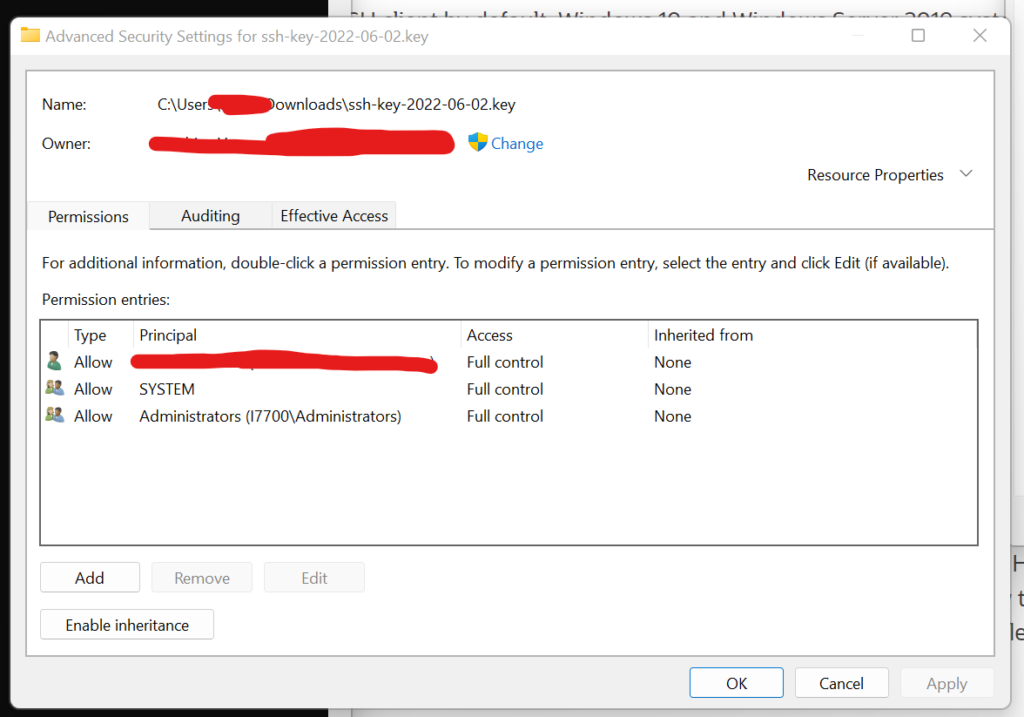
Fix Permissions for ‘ssh-key-2022-06-02.key’ are too open. on Windows

Permissions for ‘ssh-key-2022-06-02.key’ are too open.
It is required that your private key files are NOT accessible by others.
This private key will be ignored.
Load key “ssh-key-2022-06-02.key”: bad permissions
ubuntu@[IP adress]: Permission denied (publickey).

if you are on Windows

File Settings > Security > Advanced

Disable inheritance

Convert Inherited Permissions Into Explicit Permissions

And remove but leave your uer name system and administrators